Tutorial: Adding a database-backed feature
Your first app probably didn’t need to remember anything between visits. This tutorial covers what changes when it does: asking for a feature that actually saves data, not just something that lives on screen while you’re looking at it. It picks up where Your first app leaves off, using an app you’ve already built.
Before you start
- A TalkIDE project with a working app already in Preview, or published. If you haven’t built one yet, start with Your first app.
- Nothing else to prepare. You still don’t design a schema or write a migration yourself: you describe what you want, and the team figures out the implementation.
Steps
1. Describe the feature to Mara
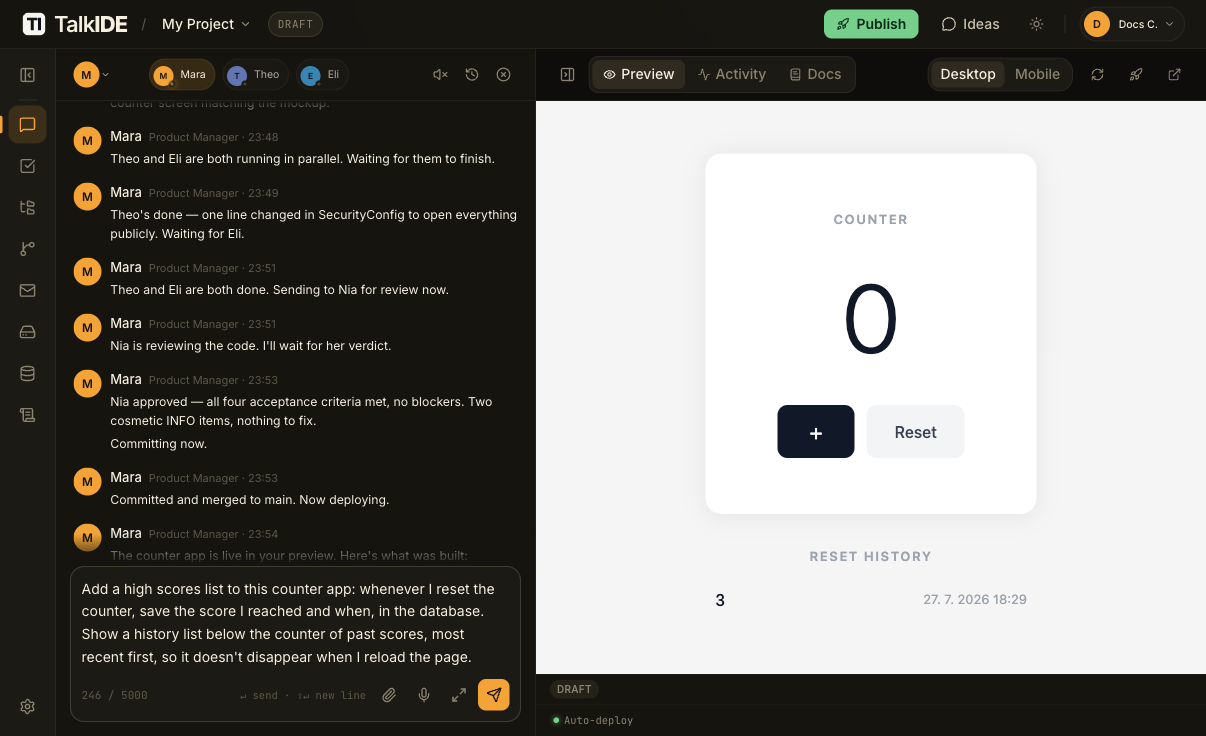
Open the IT conversation for your project and describe the feature in one plain-language message. Be specific about what should be saved and when it needs to survive:
“Add a high scores list to this counter app: whenever I reset the counter, save the score I reached and when, in the database. Show a history list below the counter of past scores, most recent first, so it doesn’t disappear when I reload the page.”
2. Mara may ask clarifying questions
If a request leaves real ambiguity about what should happen, Mara asks before starting work instead of guessing. For this request, she asked:
“Could you describe what you’d like this feature to do? A few things that would help: What gets recorded, every increment, or only when reset happens (i.e., save the value reached before resetting)? What “history” means, a list of past counter values/sessions, or just a single “highest value reached”? Persistence, this needs a database, which the app doesn’t have yet. Should this survive server restarts (real DB storage), or just last for the current browser session? Who sees it, same anonymous visitor, or does this imply accounts (so people don’t see each other’s history)?”
Answer in plain language, the same way you described the feature the first time. Once Mara has enough to go on, she puts the team to work.
3. Watch the team build it
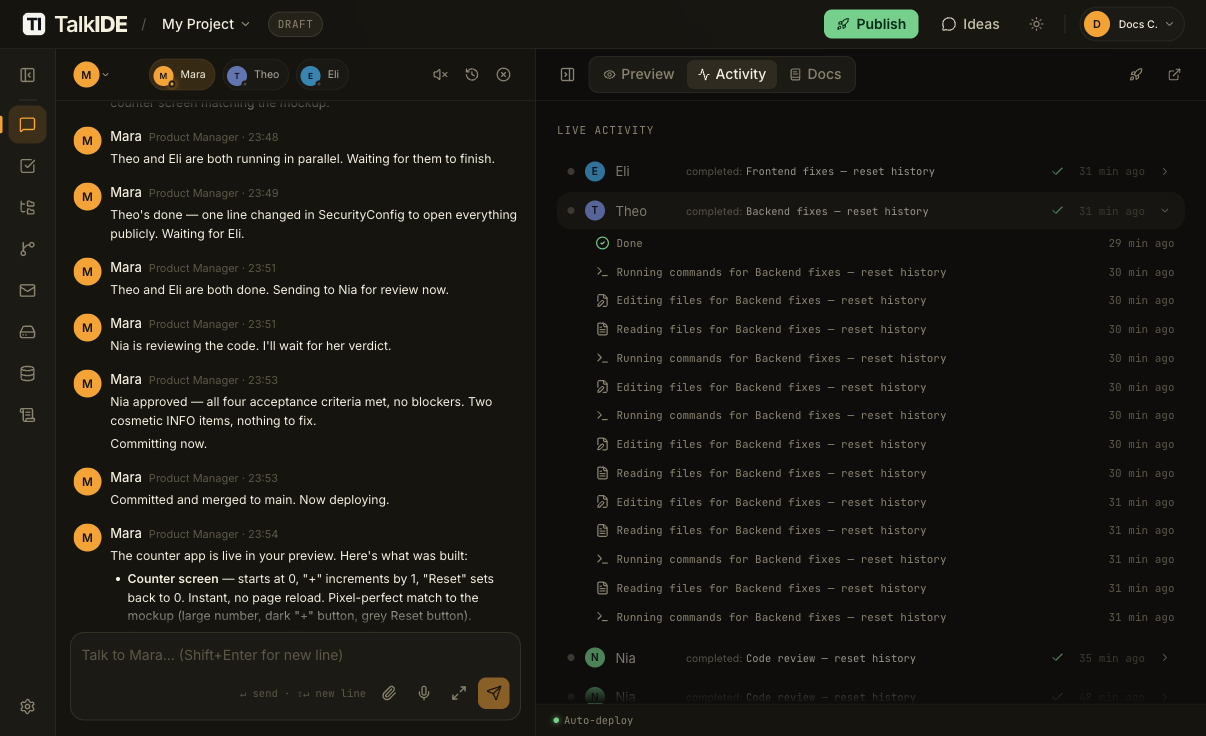
As with your first build, Mara documents the use case first, then brings in specialists who work in parallel. For a feature that needs a database, that typically means one teammate on the database and API side, and one on the screen that displays the data:
“Theo (database + API) and Eli (history list UI) are both working on this now.”
When both are finished, Mara reports back with what was actually built, sometimes noting a judgment call the team made along the way:
“Eli’s frontend work is done, followed the UC’s documented behavior (counter always resets visually, even if the save fails, with just an inline notice) rather than my slightly stricter prompt, which was the right call since the UC is the authoritative contract.”
“Both are done, Theo added the database table, API endpoints, and validation; Eli wired up the history list and reset flow. Sending to Nia for review.”
Here’s their work once it was done, in the Live Activity panel:
4. Code review before it ships
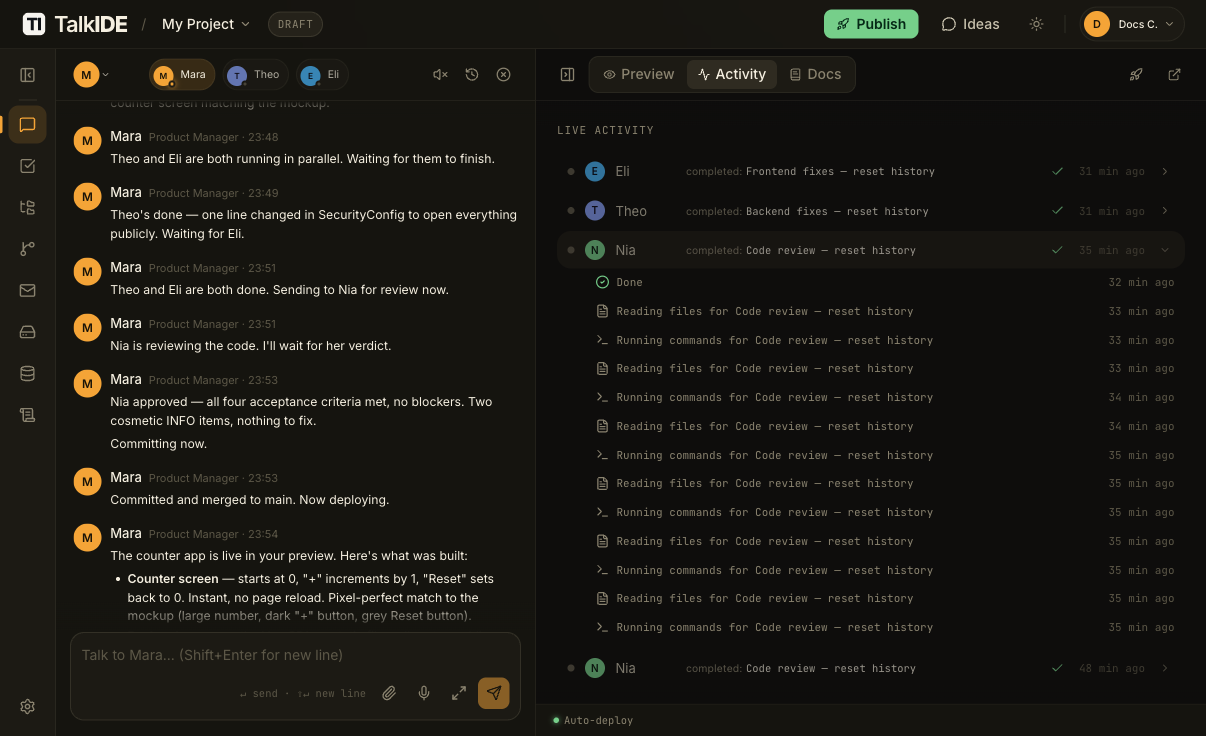
As with any change, a reviewer teammate (Nia) checks the work before it’s committed and deployed. Review has teeth: it’s not unusual for a first pass to send something back for fixes, the same way a human reviewer would. On this build, Nia’s first review found a handful of real issues before it shipped: the wrong error response for invalid input, a missing database index, an untranslated label, an error state that failed silently instead of telling you something went wrong, and a missing test. The team fixed all of it, and a second review approved the change before it was committed and deployed.
Expect a build like this to take a few minutes, possibly a bit longer than your first app if a review round sends something back for fixes first.
5. Verify it persists
Once the feature is deployed to Preview, the real test isn’t just seeing the history list appear. It’s confirming the data survives a full page reload, not just a live on-screen update.
The first time you build a feature like this, the history list starts out empty, reading something like “No resets yet.” until you trigger the save action for the first time.
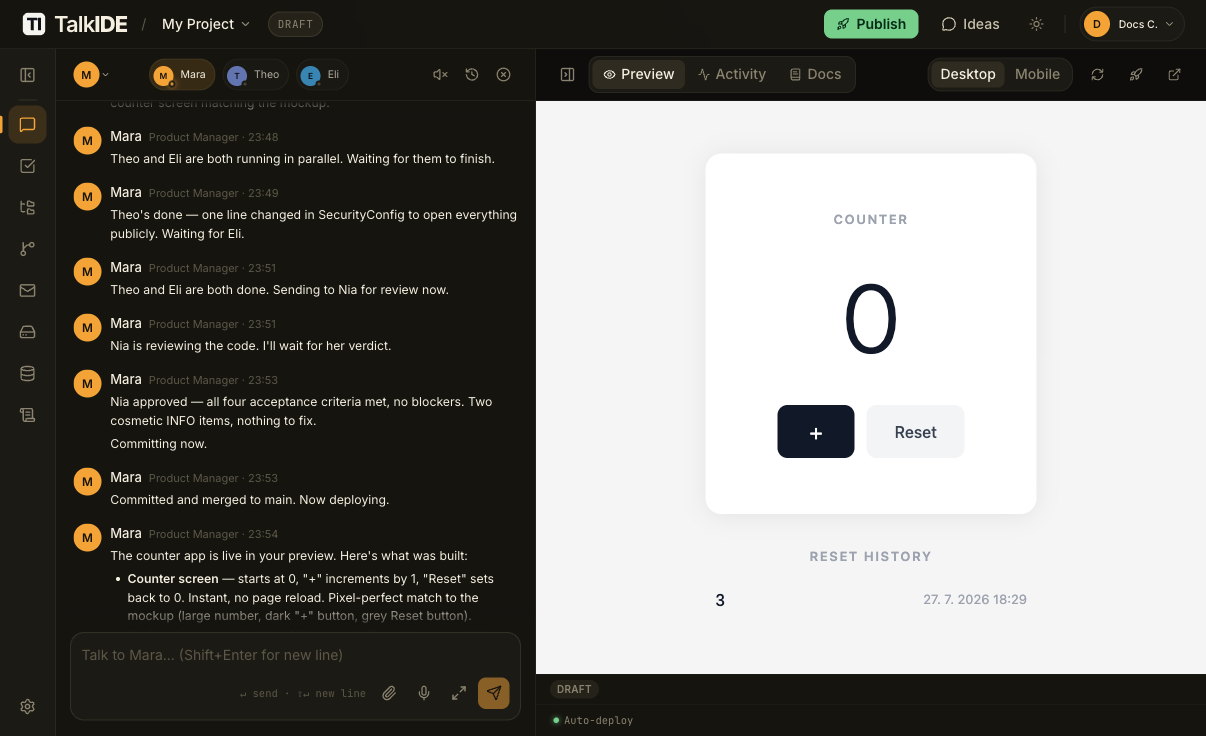
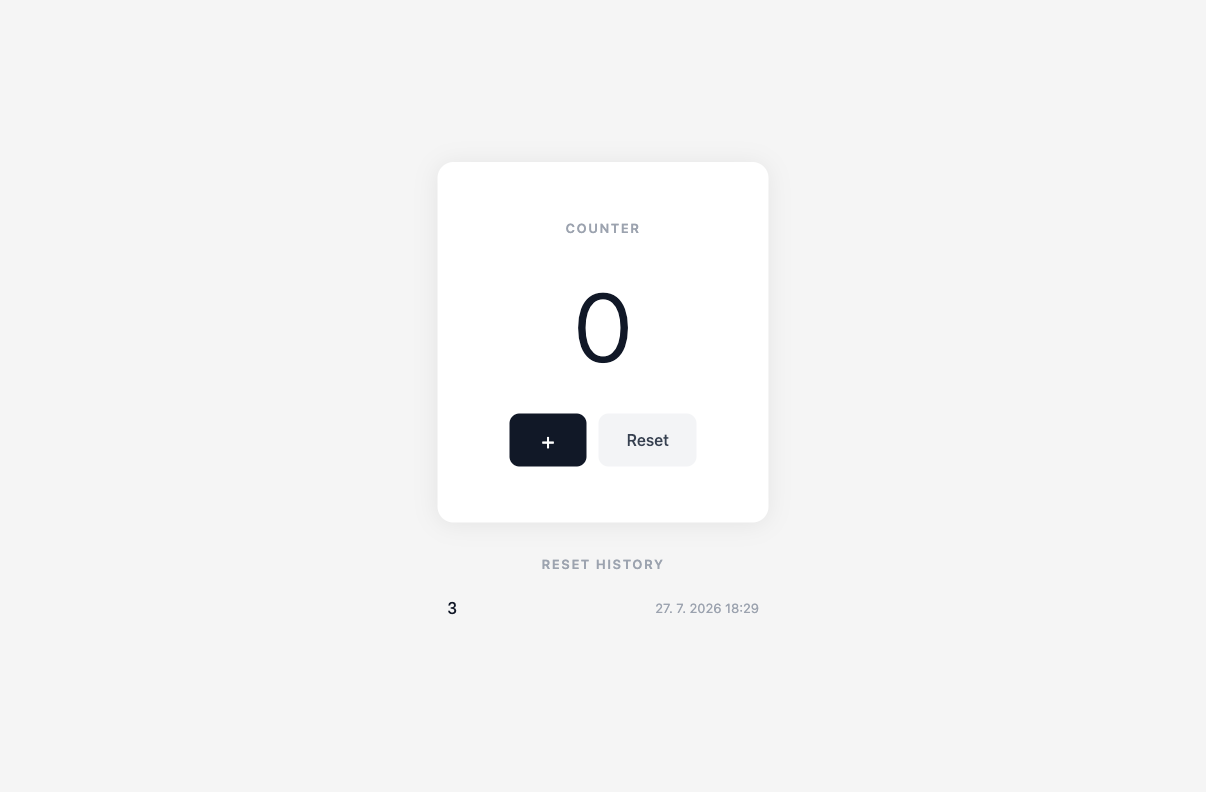
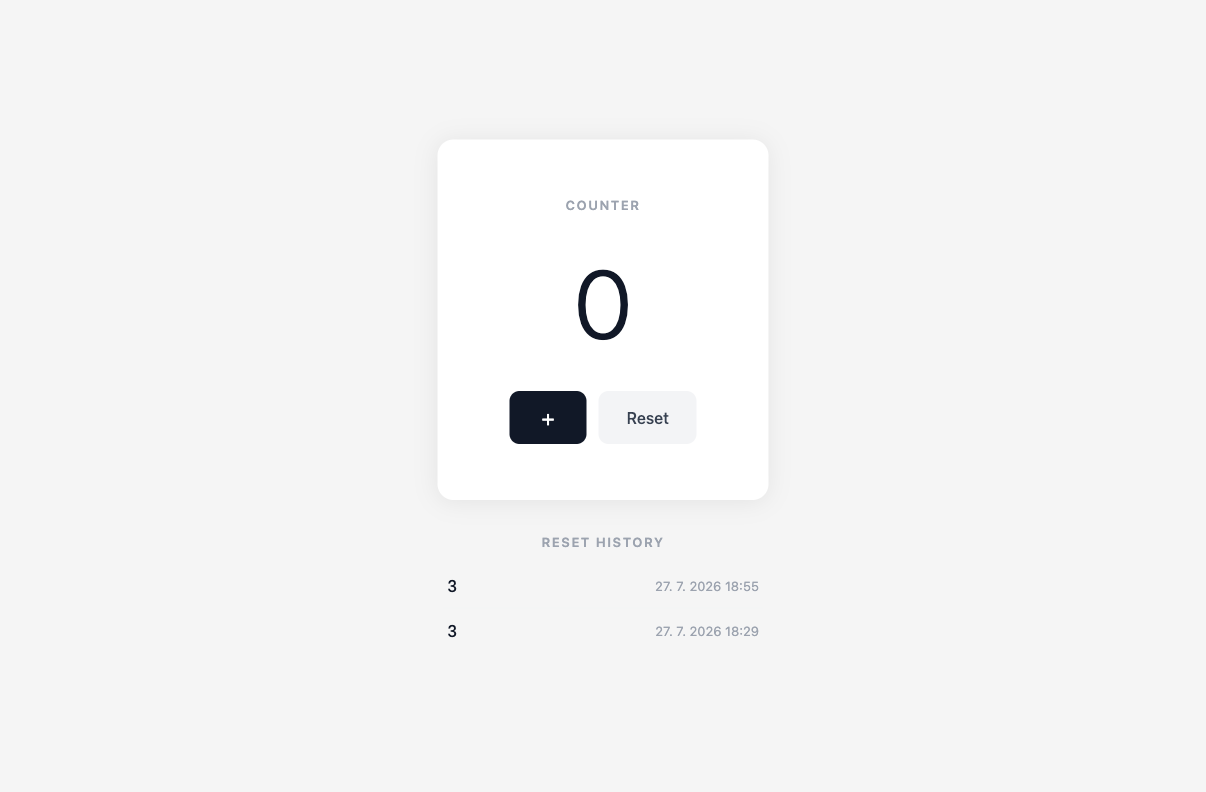
Increment the counter a few times, then click Reset. The counter goes back to 0, and the value you reached appears in the history list below it, most recent first, with a timestamp. Here’s what it looks like once you’ve reset at least once:
Now do a full page reload, not just watch the screen update on its own. Open the app in its own browser tab and reload it, a real browser refresh, not switching away and back. If whatever was in the history list before the reload is still there after the page has loaded completely from scratch, that’s the proof you’re looking at a real database, not something held only in the browser tab. You may see more than one entry if you reset more than once before reloading, either way, the entries are still there.
Optional: publish it
Once you’re happy with the feature in Preview, publishing it works exactly like publishing any other change. See Going live: publishing your app if you haven’t published this project yet.
Watch out for
- A plain-language request can still need a follow-up. If your first message leaves real ambiguity about scope, what’s saved, whether it survives a restart, single-user or multi-user, expect a clarifying question before the team starts building, not silent guessing.
- Review sometimes sends work back for fixes. That’s not a sign anything went wrong; it’s the review step doing its job before something ships.
- Verify persistence with a full reload, not just watching the screen update. A feature can look done in Preview while only holding data in memory or in the browser. Reloading the whole page from scratch is what actually proves the database is doing the work.
Related
- Your first app: prerequisite for this tutorial.
- Going live: publishing your app: once you’re happy with the feature in Preview, this is how you publish it.
- Agent roles: a full breakdown of who’s on your IT team and what each specialist does.
Thanks for the feedback.